18 — 星系生成器
介绍
既然我们已经知道如何使用粒子,就可以创建一些酷炫的东西了,比如星系。但与其只生成一个星系,不如做一个星系生成器。
为此,我们要使用 lil-gui,让用户可以调整参数,并在每次更改时生成一个新星系。
设置
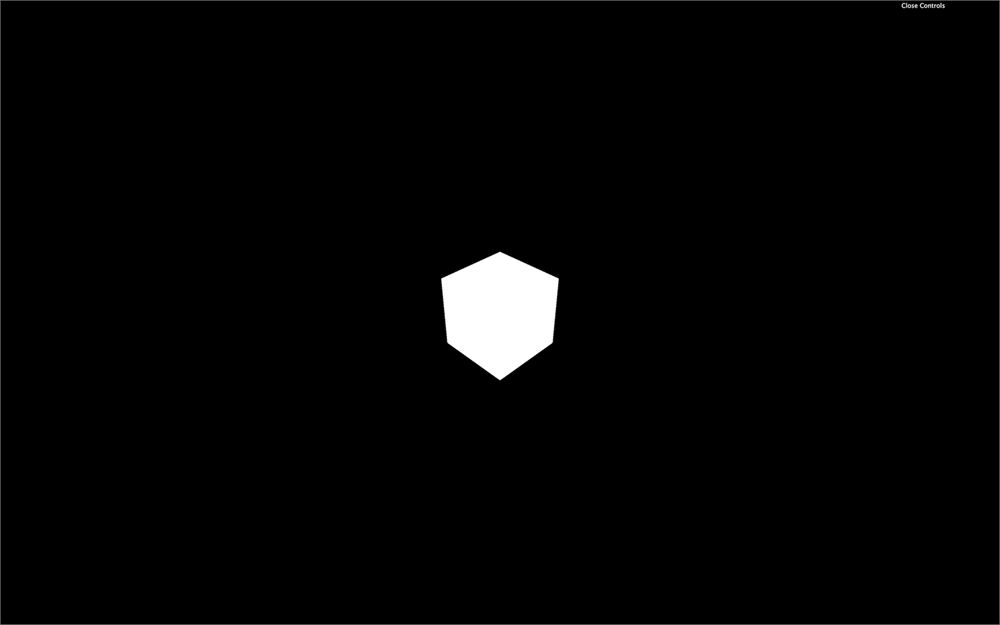
starter 只由场景中间的一个立方体组成。它用来确保一切正常。
基础粒子
首先,移除立方体并创建一个 generateGalaxy 函数。每次调用这个函数时,我们都会移除之前的星系(如果有的话)并创建一个新的。
我们可以立即调用这个函数:
/**
 * Galaxy
 */
const generateGalaxy = () =>
{

}

generateGalaxy()
我们可以创建一个对象,用来存放星系的所有参数。在 generateGalaxy 函数之前创建这个对象。我们会逐步填充它,并把每个参数都添加到 lil-gui:
const parameters = {}在我们的 generateGalaxy 函数里,我们要创建一些粒子,确保一切正常。我们可以从几何体开始,并把粒子数量添加到参数里:
const parameters = {}
parameters.count = 1000

const generateGalaxy = () =>
{
    /**
     * Geometry
     */
    const geometry = new THREE.BufferGeometry()

    const positions = new Float32Array(parameters.count * 3)

    for(let i = 0; i < parameters.count; i++)
    {
        const i3 = i * 3

        positions[i3    ] = (Math.random() - 0.5) * 3
        positions[i3 + 1] = (Math.random() - 0.5) * 3
        positions[i3 + 2] = (Math.random() - 0.5) * 3
    }

    geometry.setAttribute('position', new THREE.BufferAttribute(positions, 3))
}
generateGalaxy()
这和之前的代码一样,但我们处理循环的方式略有不同。
我们现在可以用 PointsMaterial 类创建材质了。这次同样,我们可以在 parameters 对象里添加调整项:
parameters.size = 0.02

const generateGalaxy = () =>
{
    // ...

    /**
     * Material
     */
    const material = new THREE.PointsMaterial({
        size: parameters.size,
        sizeAttenuation: true,
        depthWrite: false,
        blending: THREE.AdditiveBlending
    })
}
最后,我们可以用 Points 类创建 points,并把它加到场景里:
const generateGalaxy = () =>
{
    // ...

    /**
     * Points
     */
    const points = new THREE.Points(geometry, material)
    scene.add(points)
}
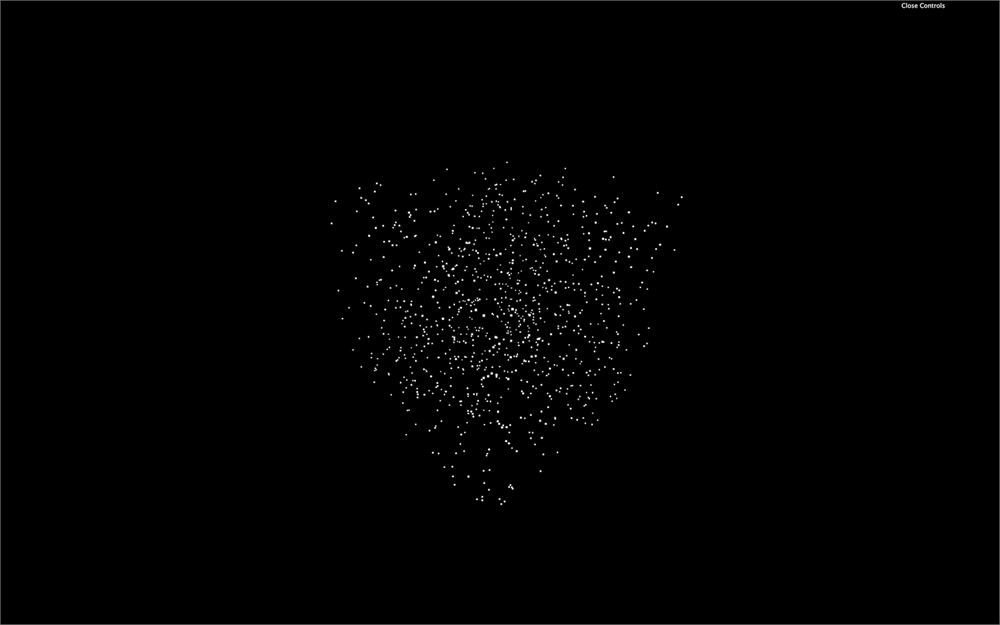
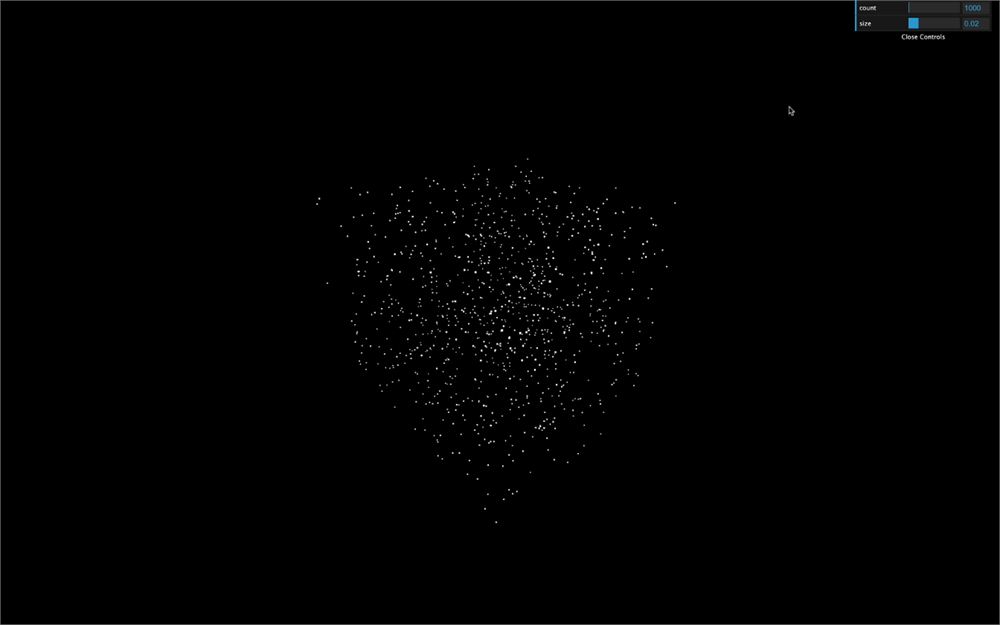
你应该会看到几个点漂浮在周围。
调整项
我们已经有两个参数,count 和 size。让我们把它们添加到我们在代码开头创建好的 lil-gui 实例里。你可以想象,我们必须把这些调整项放在参数创建之后:
parameters.count = 1000
parameters.size = 0.02

gui.add(parameters, 'count').min(100).max(1000000).step(100)
gui.add(parameters, 'size').min(0.001).max(0.1).step(0.001)
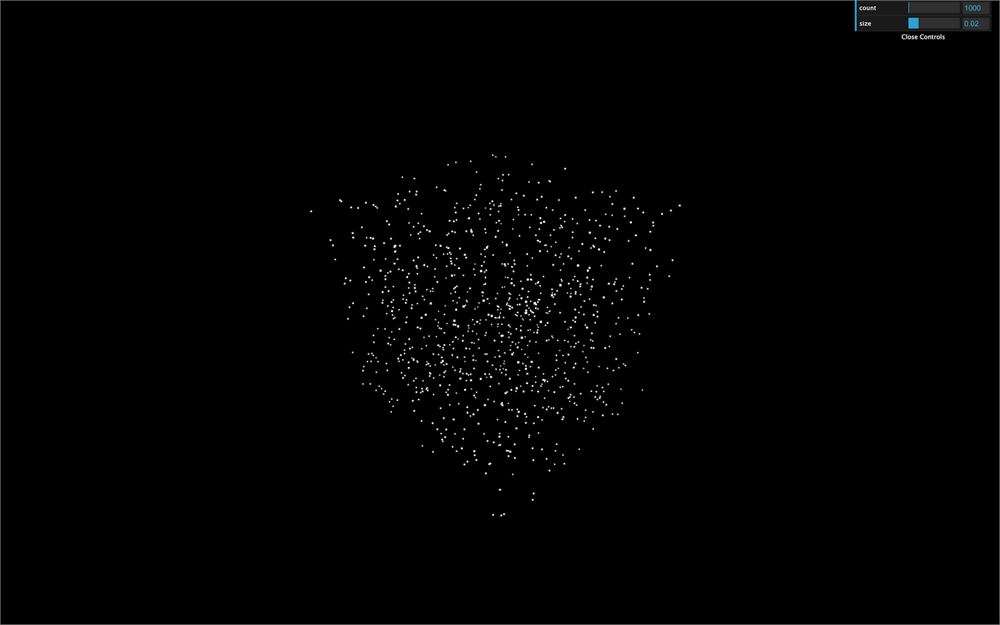
你应该会在调整项里看到两个新的滑块,但改变它们并不会生成新的星系。要生成新星系,你必须监听 change 事件。更准确地说,是监听 finishChange 事件,以防止你在拖拽滑块时不断生成星系:
gui.add(parameters, 'count').min(100).max(1000000).step(100).onFinishChange(generateGalaxy)
gui.add(parameters, 'size').min(0.001).max(0.1).step(0.001).onFinishChange(generateGalaxy)
这段代码不会生效,因为 generateGalaxy 还不存在。你必须把这些调整项移到 generateGalaxy 函数之后。
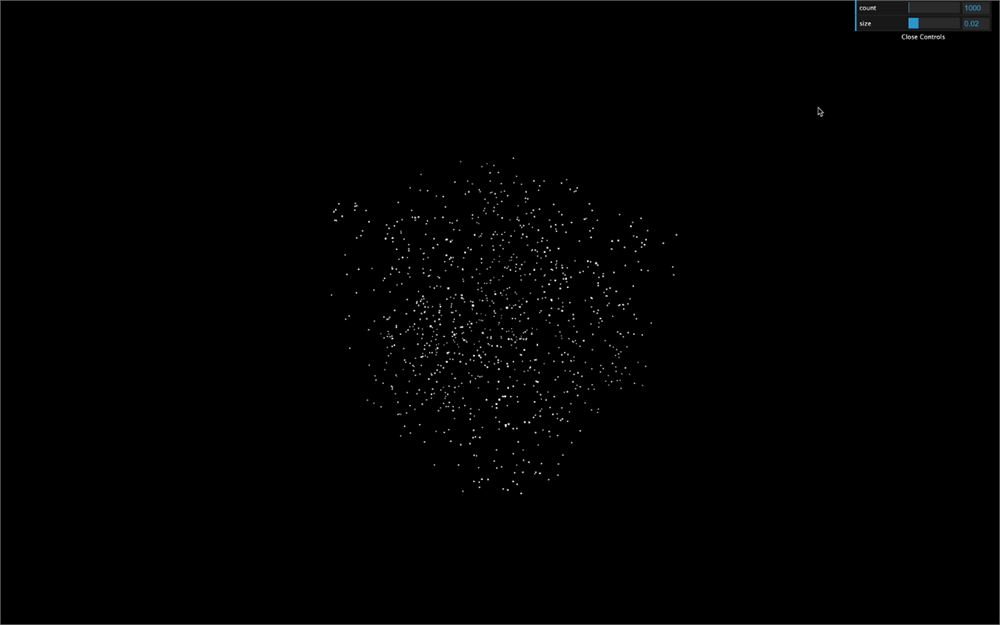
小心,我们还有一个问题,如果你太频繁地摆弄调整项,你的电脑会开始发热。因为我们没有销毁之前创建的星系。我们正在一个叠一个地创建星系。
为了把事做对,我们必须先把 geometry、material 和 points 变量移到 generateGalaxy 外面。
let geometry = null
let material = null
let points = null

const generateGalaxy = () =>
{
    // ...

    geometry = new THREE.BufferGeometry()

    // ...

    material = new THREE.PointsMaterial({
        size: parameters.size,
        sizeAttenuation: true,
        depthWrite: false,
        blending: THREE.AdditiveBlending
    })

    // ...

    points = new THREE.Points(geometry, material)

    // ...
}
然后,在给这些变量赋值之前,我们可以测试它们是否已经存在。如果存在,我们可以在 geometry 和 material 上调用 dispose() 方法。然后用 remove() 方法把 points 从场景中移除:
const generateGalaxy = () =>
{
    // Destroy old galaxy
    if(points !== null)
    {
        geometry.dispose()
        material.dispose()
        scene.remove(points)
    }

    // ...
}
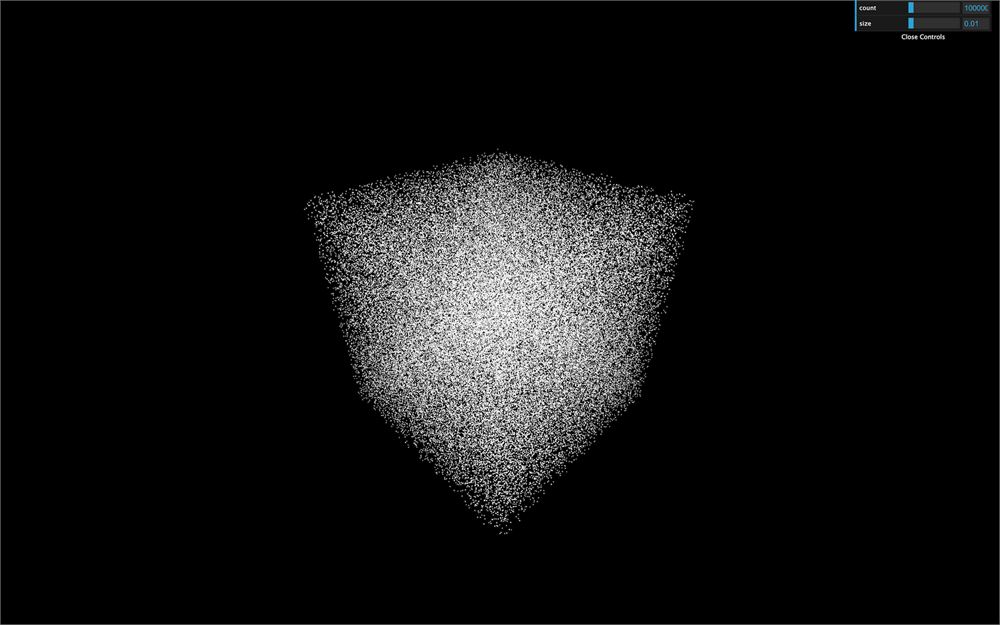
与其使用一个会像上一课那样产生深度和 alpha 问题的纹理,我们干脆保留默认的正方形形状。别担心;会有那么多小粒子,我们根本注意不到它们是正方形。
既然我们能估算可以用多少个粒子以及它们的大小了,让我们更新参数:
parameters.count = 100000
parameters.size = 0.01
形状
星系可以有几种不同的形状。我们会专注于旋臂型。摆放粒子来创建星系有很多方式。在测试课程的方案之前,随意试试你自己的方案。
半径
首先,让我们创建一个 radius 参数:
parameters.radius = 5

// ...

gui.add(parameters, 'radius').min(0.01).max(20).step(0.01).onFinishChange(generateGalaxy)
每颗星星都会根据这个半径定位。如果半径是 5,星星会分布在从 0 到 5 的距离内。现在,让我们把所有粒子放在一条直线上:
for(let i = 0; i < parameters.count; i++)
{
    const i3 = i * 3

    const radius = Math.random() * parameters.radius

    positions[i3    ] = radius
    positions[i3 + 1] = 0
    positions[i3 + 2] = 0
}

旋臂
旋涡星系似乎总是至少有两条旋臂,但也可以多得多。
创建一个 branches 参数:
parameters.branches = 3

// ...

gui.add(parameters, 'branches').min(2).max(20).step(1).onFinishChange(generateGalaxy)
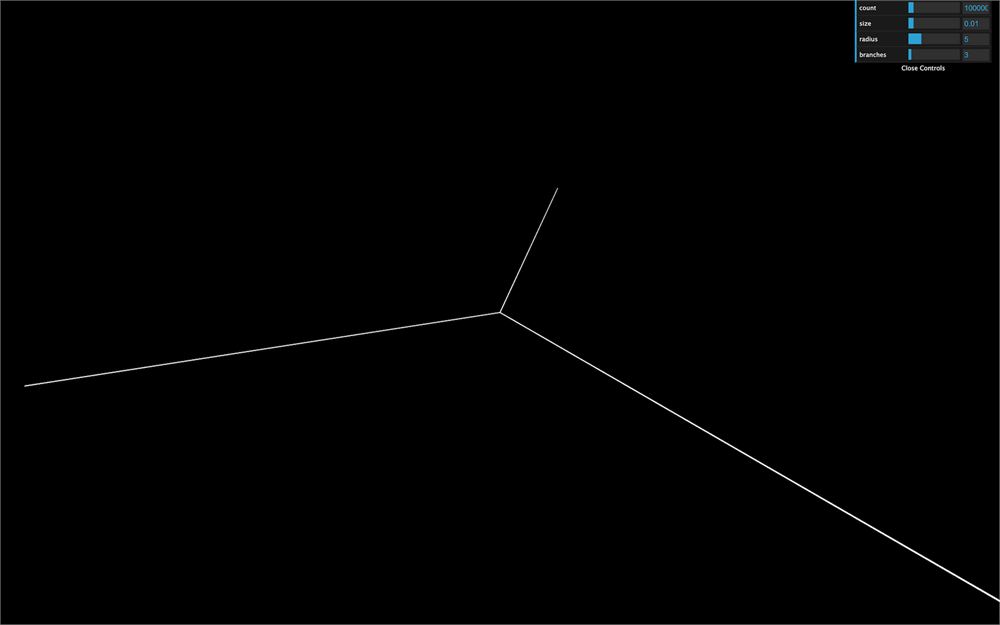
我们可以用 Math.cos(...) 和 Math.sin(...) 把粒子放在这些旋臂上。我们先用模(%)计算一个角度,把结果除以旋翼数量参数得到一个 0 到 1 之间的角度,再把这个值乘以 Math.PI * 2 得到一个 0 到一整圈之间的角度。然后我们在 x 和 z 轴上用 Math.cos(...) 和 Math.sin(...) 使用这个角度,最后再乘以半径:
for(let i = 0; i < parameters.count; i++)
{
    const i3 = i * 3

    const radius = Math.random() * parameters.radius
    const branchAngle = (i % parameters.branches) / parameters.branches * Math.PI * 2

    positions[i3    ] = Math.cos(branchAngle) * radius
    positions[i3 + 1] = 0
    positions[i3 + 2] = Math.sin(branchAngle) * radius
}
旋转
让我们添加旋转效果。
创建一个 spin 参数:
parameters.spin = 1

// ...

gui.add(parameters, 'spin').min(- 5).max(5).step(0.001).onFinishChange(generateGalaxy)
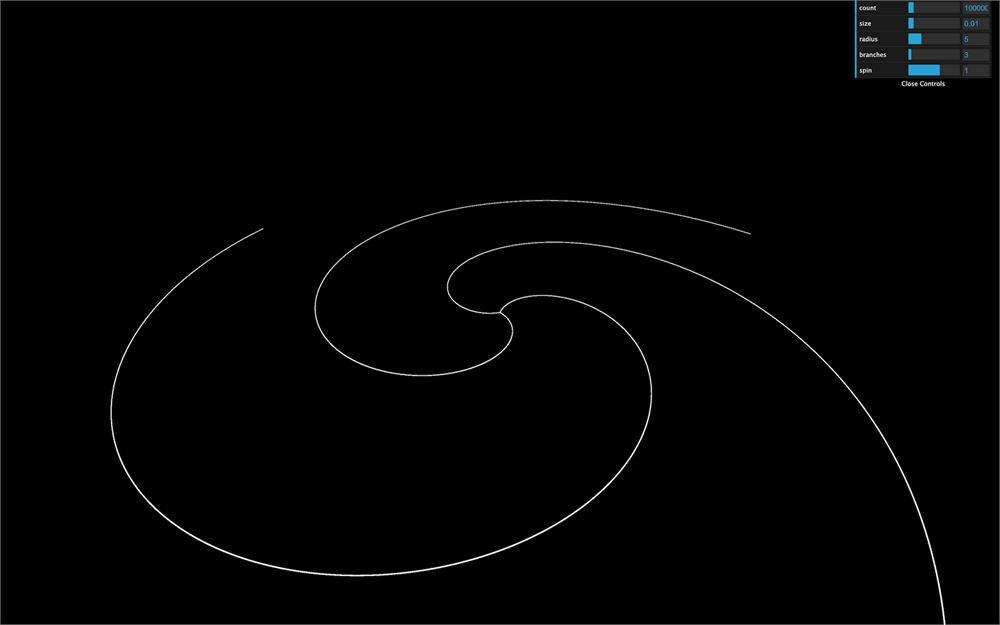
然后我们可以把 spinAngle 乘以这个 spin 参数。换句话说,粒子离中心越远,它承受的旋转就越多:
for(let i = 0; i < parameters.count; i++)
{
    const i3 = i * 3

    const radius = Math.random() * parameters.radius
    const spinAngle = radius * parameters.spin
    const branchAngle = (i % parameters.branches) / parameters.branches * Math.PI * 2

    positions[i3    ] = Math.cos(branchAngle + spinAngle) * radius
    positions[i3 + 1] = 0
    positions[i3 + 2] = Math.sin(branchAngle + spinAngle) * radius
}
随机性
这些粒子排列得太整齐了。我们需要随机性。但我们真正需要的是,外围的星星更分散,内部的星星更密集。
创建一个 randomness 参数:
parameters.randomness = 0.2

// ...

gui.add(parameters, 'randomness').min(0).max(2).step(0.001).onFinishChange(generateGalaxy)
现在用 Math.random() 为每个轴创建一个随机值,把它乘以 radius,然后把这些值加到 positions 上:
for(let i = 0; i < parameters.count; i++)
{
    const i3 = i * 3

    const radius = Math.random() * parameters.radius

    const spinAngle = radius * parameters.spin
    const branchAngle = (i % parameters.branches) / parameters.branches * Math.PI * 2

    const randomX = (Math.random() - 0.5) * parameters.randomness * radius
    const randomY = (Math.random() - 0.5) * parameters.randomness * radius
    const randomZ = (Math.random() - 0.5) * parameters.randomness * radius

    positions[i3    ] = Math.cos(branchAngle + spinAngle) * radius + randomX
    positions[i3 + 1] = randomY
    positions[i3 + 2] = Math.sin(branchAngle + spinAngle) * radius + randomZ
}
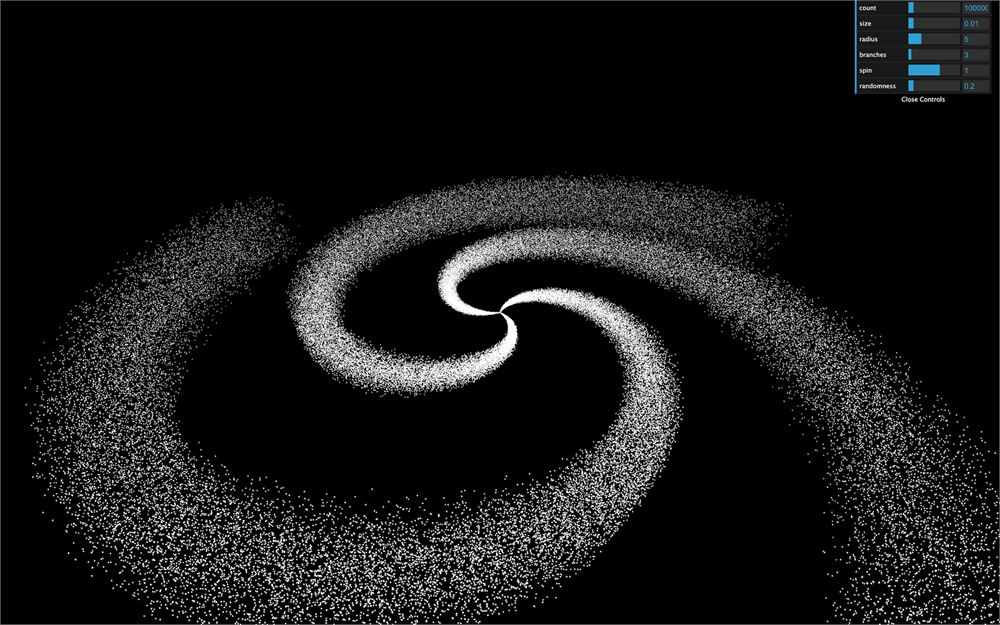
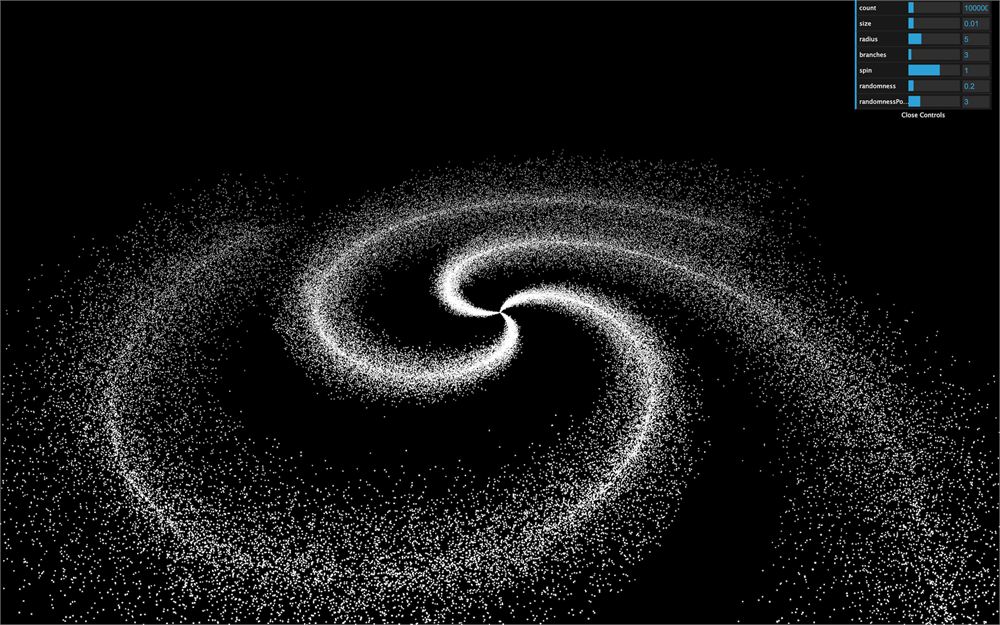
它起作用了,但不是很令人信服,对吧?而且我们仍然能看出图案。要修复这个,我们可以用 Math.pow() 把值"压扁"。你施加的幂越大,值就越接近 0。问题是 Math.pow() 不能用于负值。我们要做的是计算幂,然后随机乘以 -1。
先创建 power 参数:
parameters.randomnessPower = 3

// ...

gui.add(parameters, 'randomnessPower').min(1).max(10).step(0.001).onFinishChange(generateGalaxy)
然后用 Math.pow() 施加幂,并随机乘以 -1:
const randomX = Math.pow(Math.random(), parameters.randomnessPower) * (Math.random() < 0.5 ? 1 : - 1) * parameters.randomness * radius
const randomY = Math.pow(Math.random(), parameters.randomnessPower) * (Math.random() < 0.5 ? 1 : - 1) * parameters.randomness * radius
const randomZ = Math.pow(Math.random(), parameters.randomnessPower) * (Math.random() < 0.5 ? 1 : - 1) * parameters.randomness * radius
颜色
为了更好的效果,我们需要给我们的创作加一些颜色。一个很棒的思路是让星系内部和边缘有不同的颜色。
首先,添加颜色参数:
parameters.insideColor = '#ff6030'
parameters.outsideColor = '#1b3984'

// ...

gui.addColor(parameters, 'insideColor').onFinishChange(generateGalaxy)
gui.addColor(parameters, 'outsideColor').onFinishChange(generateGalaxy)
我们要为每个顶点提供一个颜色。我们必须在材质上激活 vertexColors:
material = new THREE.PointsMaterial({
    size: parameters.size,
    sizeAttenuation: true,
    depthWrite: false,
    blending: THREE.AdditiveBlending,
    vertexColors: true
})
然后像添加 position attribute 那样,在我们的几何体上添加一个 color attribute。现在,我们还不使用 insideColor 和 outsideColor 参数:
geometry = new THREE.BufferGeometry()

const positions = new Float32Array(parameters.count * 3)
const colors = new Float32Array(parameters.count * 3)

for(let i = 0; i < parameters.count; i++)
{
    // ...

    colors[i3    ] = 1
    colors[i3 + 1] = 0
    colors[i3 + 2] = 0
}

geometry.setAttribute('position', new THREE.BufferAttribute(positions, 3))
geometry.setAttribute('color', new THREE.BufferAttribute(colors, 3))
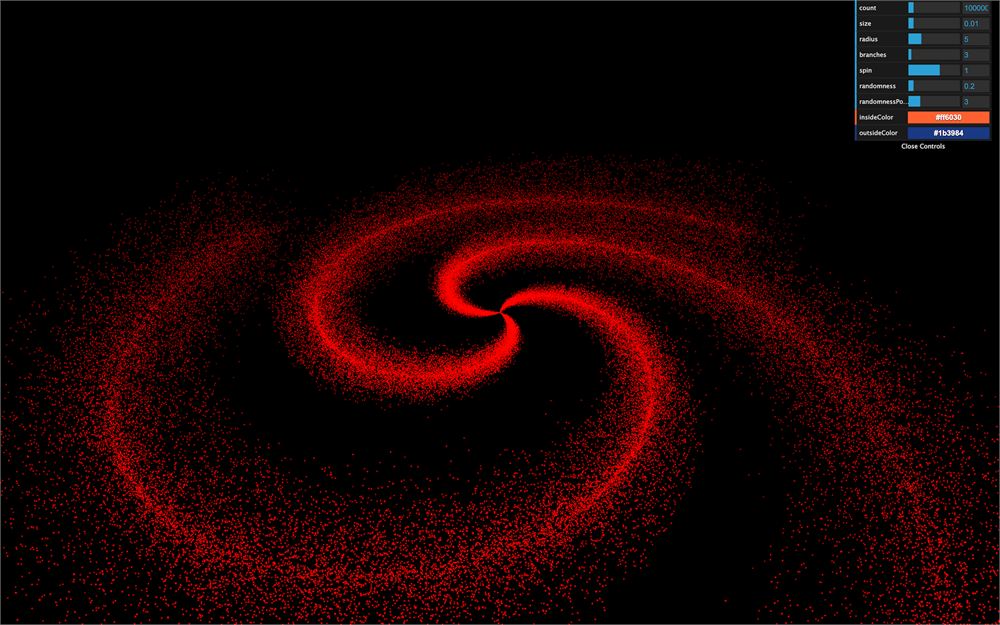
你应该会得到一个红色星系。
要使用参数里的颜色,我们首先需要为每一个创建一个 Color 实例。我们必须在 generateGalaxy 函数内部创建,原因你一会儿就明白了:
const generateGalaxy = () =>
{
    // ...

    const colorInside = new THREE.Color(parameters.insideColor)
    const colorOutside = new THREE.Color(parameters.outsideColor)

    // ...
}
在循环函数内部,我们想把这两个颜色混合成第三个颜色。这个混合取决于距星系中心的距离。如果粒子在星系中心,它会使用 insideColor,它离中心越远,就越会混入 outsideColor。
与其创建第三个 Color,我们不如克隆 colorInside,然后用 lerp(...) 方法从这个基础颜色插值到另一个颜色。lerp(...) 的第一个参数是另一个颜色,第二个参数是 0 到 1 之间的值。如果是 0,颜色保持基础值;如果是 1,结果颜色就是提供的那个颜色。我们可以用 radius 除以 radius 参数:
const mixedColor = colorInside.clone()
mixedColor.lerp(colorOutside, radius / parameters.radius)
然后我们可以在 colors 数组里使用 r、g 和 b 属性:
colors[i3    ] = mixedColor.r
colors[i3 + 1] = mixedColor.g
colors[i3 + 2] = mixedColor.b
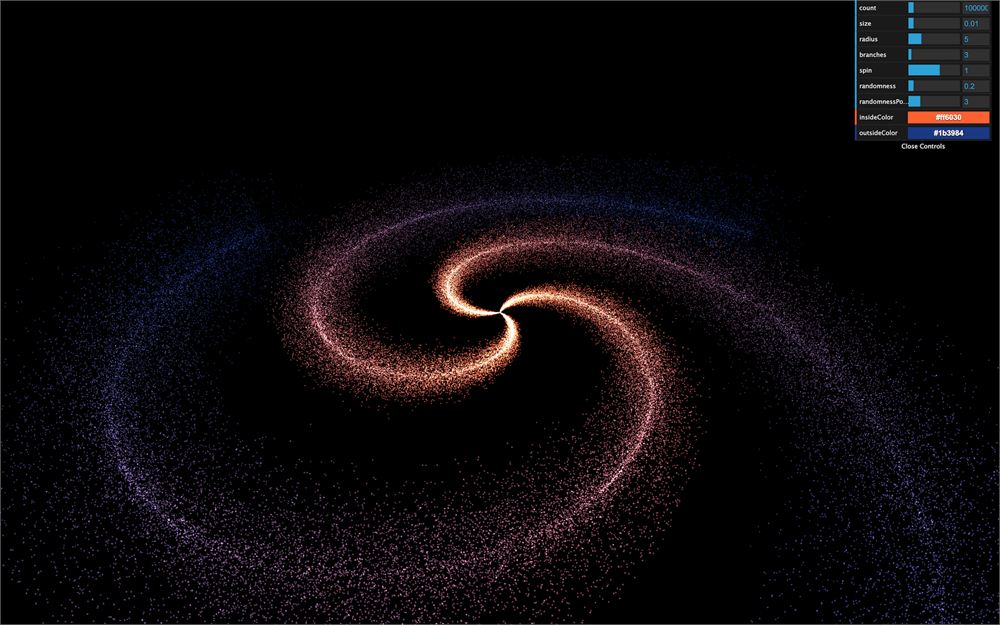
然后,你就有了一个漂亮的星系生成器。你可以摆弄调整项,继续添加参数,改进星系的外观。
尽量别把你电脑烧了。
继续深入
要更进一步,你可以尝试添加更多调整项,或测试其他星系形状。我们会在未来的课程里学习如何在炫酷的旋转动画中动画化所有粒子。